Features
A barcode POS that starts with your phone camera
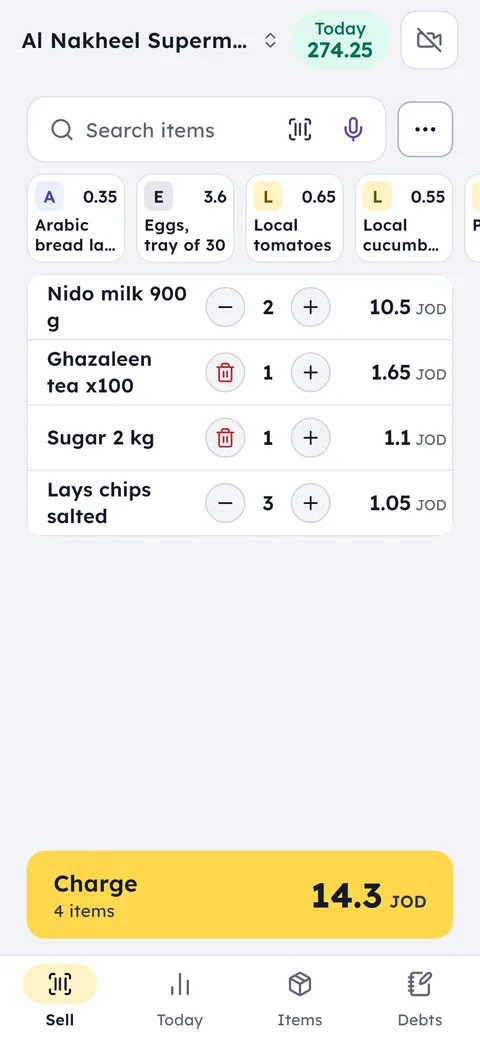
Your phone camera is all the scanner you need to start: point it and scan item after item without touching the screen. Busier counter? Add a USB or Bluetooth scanner.
What this feature does: Barcode
No extra hardware
The phone camera reads barcodes directly, so you can sell from day one without buying a scanner.
Continuous scanning
The camera stays open and picks up items one after another, with no tap in between.
USB and Bluetooth scanners
Connect an external scanner to a phone, tablet, POS terminal or Windows PC and it works on the selling and stocktake screens.
Stocktake by scan
Walk the shelves and scan. Ghalleh compares what you counted with what is on record.
Scale labels
The label from the deli, butcher or produce scale scans like any barcode, and the item lands on the invoice as weighed.
Sell by amount
When a customer asks for a dinar's worth of something sold by weight, type the amount and Ghalleh works out the quantity from the kilo price.
Barcode and price labels
Print barcodes for items that have none, and shelf tags only for the items whose price changed.
Price check
Scan an item to see its price and the stock left, without adding it to the sale.
Scan a product's barcode and Ghalleh suggests its name, then type the price, or import your full list from Excel.
Each scan adds the item at its price, and you can change the quantity on the same screen.
During a stocktake, scan what is on the shelf, enter the count, and see the differences straight away.
Typing items in by hand is slow, and it lets small mistakes pile up: an old price, a similar product, a mistyped number. With Ghalleh, the phone camera reads the barcode and adds the item at its saved price. Scanning is continuous, so the camera stays open and catches the next item as soon as you pass it in front, and selling keeps the pace of the counter.
If your counter is busy, connect a Bluetooth scanner to the phone or tablet, or a USB scanner to a POS terminal or a Windows PC, and it works on both the selling and stocktake screens. The same barcode links each item to its stock, cost and reports, so every scan at the counter updates the quantity and feeds your profit figures with no extra step.
- A customer with a full basketContinuous scanning rings up twenty items as fast as the cashier can pass them, with no names or prices typed.
- A new cashier's first dayNo price list to memorise. They scan, the right price appears, and they are selling within the first hour.
- A delivery of new productsScan each barcode, Ghalleh suggests the name, you type the price, and the items are ready before the carton is empty.
- Month-end stocktakeNo counting on paper and typing it in later. Scan the shelf, enter the count, and see the gap against your records.
Scan a barcode and Ghalleh suggests the item
The hardest part of day one is entering your items. Ghalleh comes with about 388 ready packaged items common in Jordanian supermarkets, with their names and brand logos: pick what is on your shelves and type your own price. Scan a barcode you have not added yet and Ghalleh suggests the item's name, so you type the price and keep selling.
If your items are in an Excel file from a supplier or your old system, import them in one go, barcodes included. Whatever is left gets added while you sell, in seconds per item.
Barcode labels for items without a barcode
Not everything in a shop comes with a barcode: loose goods, items packed in the shop, small accessories. Open Barcode labels from the item tools and you get a list of the items with no barcode. Pick the ones you want, print their labels, and scan them at the till like anything else.
When prices change, Changed price tags prints shelf tags only for the items whose price moved, so the shelf matches the till and nobody stands at the counter asking why the price is different.
Scale labels and selling by weight
At the produce, meat or cheese counter the scale prints a label with the item code and its weight or price. Ghalleh scans it like any barcode and the item goes on the sale as weighed. If it is not clear whether the label carries the weight or the price, Ghalleh asks you once and remembers.
Items sold by weight without a label show as buttons on the selling screen: tap one and type the weight, or type how many dinars the customer wants and Ghalleh works out the weight.
Common questions
Do I need to buy a barcode scanner?
No. A phone or tablet camera is enough for selling and stocktakes. An external scanner is optional and helps when the counter is busy.
Which scanners work with Ghalleh?
Bluetooth scanners on phones and tablets, USB scanners on POS terminals and Windows PCs, and the built-in scanner of Sunmi and iMin terminals. They work on the selling screen and in stocktakes.
What about products without a barcode?
Find them by name on the selling screen, make them buttons under the search, or print barcode labels for them from the item tools and scan them like anything else.
Can Ghalleh read scale labels?
Yes. The label printed by a butcher, deli or produce scale scans with the camera or a scanner like any barcode, and the item goes on the invoice as weighed.
Does Ghalleh know the item from its barcode?
For many packaged products, yes: scan the barcode and Ghalleh suggests the name, and you type the selling price. It also comes with about 388 ready items with brand logos to pick from.
Open your shop on Ghalleh today.
Download the app, set up your shop yourself and try every feature free for 14 days, with no card.