
Features
Staff permissions and shifts in your POS
Your team works, and you know who did what: an account per employee with permissions you choose, every sale under whoever made it, and a log of every sensitive action.
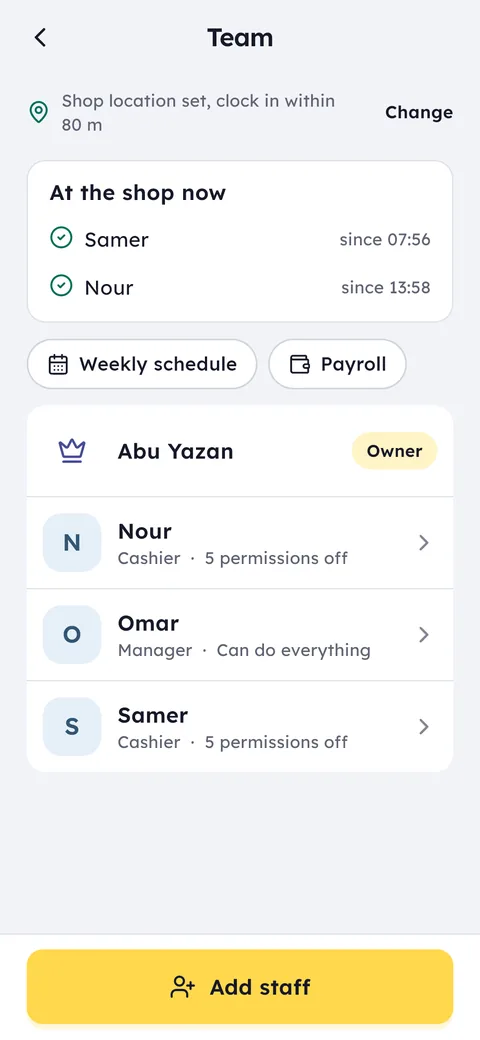
What this feature does: Staff and permissions
Roles and permissions
Owner, manager and cashier, and you decide what each can do: discounts, refunds, price changes or selling on credit.
Join by QR code
Add the employee with a name and role, and a QR code appears for them to scan with their phone.
A PIN for everyone
On a shared shop phone each employee signs in with their own 4 digit PIN, and every sale is recorded under them.
Shift schedules
Plan the week's shifts, copy last week, and see who is working right now.
Activity log
Every big discount, refund and sensitive action recorded with the employee's name and the time.
Clock-in at the shop
Employees clock in and out from their phone, and it only works inside the shop's location.
In Team tap New staff and type their name and role: manager or cashier. They scan the QR code with their phone to join.
On their page, under What they may do, switch each permission on or off, such as discounts, refunds and selling on credit.
Who came in and when, who is working now, and how much each person sold on their shift.
Once more than one person works in your shop, the key question becomes: who did what? In Ghalleh every employee has their own account and role, owner, manager or cashier, and every action has a permission you can switch on or off. A cashier without discount rights cannot give one, and every sensitive action is logged with their name and the time.
Clock-in happens on the employee's own phone, but only inside the shop's location, so nobody clocks in from home. Plan the week's shifts, see who is working now, and follow sales per employee. At month end the hours are ready for payroll, with salary advances recorded against each person. Attendance is part of the Ghalleh cashier app itself, not a separate app, and it is in every plan, with the number of staff set by the plan: Start covers the owner plus 3 staff, and Pro the owner plus 10.
- An employee says they were on timeThe attendance record shows the real clock-in time, and clock-ins only count from inside the shop.
- A refund you do not remember approvingThe activity log shows who made it, when, and on which invoice.
- One counter phone, three cashiersEach switches to their own account with their PIN, so at the end of the day you know who made every sale.
- Month end and payrollEach employee's hours are ready for payroll, and any salary advances are recorded on their account.
Joining with a QR code and a PIN
- Add the employee
From the shop menu open Team, tap New staff, and type their name and role. - They scan the code
A QR code appears on your screen. The employee scans it after installing Ghalleh and joins your shop with no password. - They choose a PIN
A 4 digit PIN for the shared shop phone, so every sale is recorded under them. - You set their permissions
On their page, under What they may do: returns, discounts, prices and selling on credit.
The shared counter phone
Many shops have one device at the counter that several people sell on. In Ghalleh the employee taps Switch user and enters their PIN, and sells under their own name and permissions. At the end of the day you see sales by cashier and know who made each refund or discount, even on a single device.
Waiting for your approval
Some decisions stay with you. A drawer difference at the end of a shift waits for your approval: accept it as it is, take the shortage from the employee's pay, or let it go this time. Advance requests from staff reach you too: approve one and it is recorded on the employee's account, paid from the drawer if you choose, or refuse it with a reason if you like.
Every decision is recorded with who made it and when, so nothing rests on someone's word.
Attendance and payroll in the same place
Attendance in Ghalleh comes from the employee's phone, inside the shop's location only, and the weekly schedule and payroll sit on the same Team screen. Set each employee's pay and at month end you see their hours, days and advances, and what they are still owed or have overdrawn. The attendance app page has the details.
Common questions
How does it stop clock-ins from outside the shop?
You set the shop's location once on the map, and clocking in or out from an employee's phone only works while they are inside it.
Can I stop a cashier from giving discounts or refunds?
Yes. Each sensitive action has its own permission, which you switch on or off for each employee.
How does an employee join the shop?
Add them in Team with a name and role, a QR code appears for them to scan with their phone, then they choose a 4 digit PIN. No passwords, and no accounts they create themselves.
How many staff can I add?
Start covers the owner plus 3 staff, Pro the owner plus 10, and the free trial gives you 10. Every feature is in every plan.
Can I use Ghalleh for attendance only?
Attendance is part of the Ghalleh cashier app itself, not a separate app: with it come selling, stock, the cash drawer and sales per employee on each shift. It is in every plan, with the number of staff set by the plan.
Open your shop on Ghalleh today.
Download the app, set up your shop yourself and try every feature free for 14 days, with no card.