
Features
A POS on your phone, tablet and PC
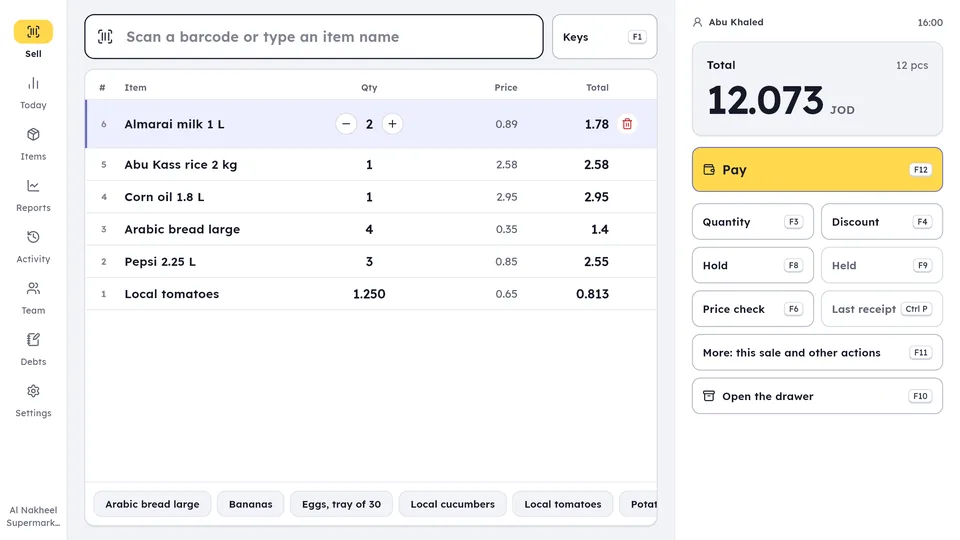
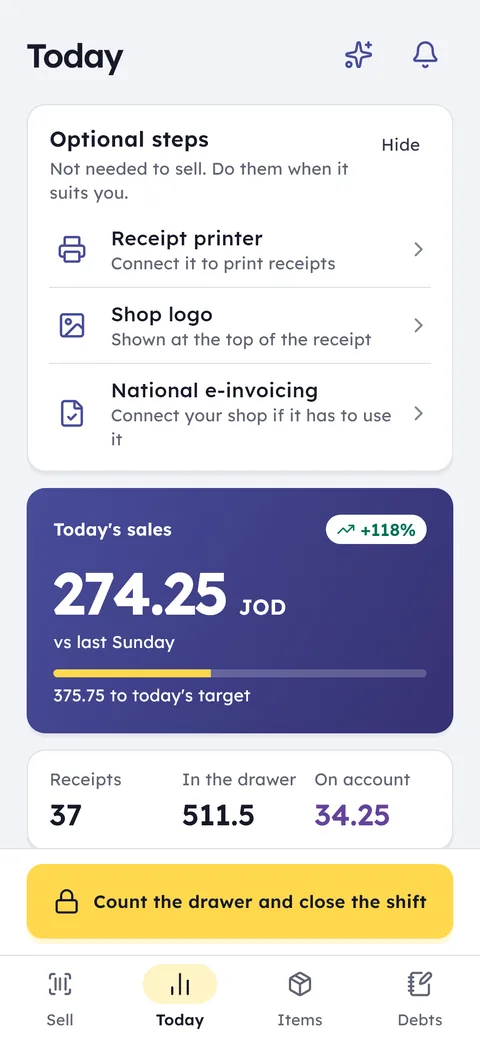
The cashier on the tablet or PC, you on your phone: a sale on one shows on the others the same second.
What this feature does: Devices
Phone and tablet
An Android phone, a tablet, or an Android POS terminal that has Google Play, such as Sunmi and iMin.
Windows PC
The Windows version on the same shop account: sell with the keyboard and a barcode scanner, print on USB printers.
Live sync
A sale at the counter shows up on your phone at home the same second.
Printers and scanners
Bluetooth thermal printers (58 or 80 mm), the built-in printers of POS terminals, USB printers on a PC, and barcode scanners.
Works offline
Selling carries on when the connection drops, and invoices sync when it returns.
Cash drawer
A cash drawer connected to the receipt printer opens after a cash sale or a cash refund, and only then.
From Google Play on an Android phone or tablet, and the Windows version from the download page. Sign in with your mobile number and an SMS code, and your 14-day free trial starts.
Staff join by scanning a QR code with their phone, and a PC links with a code starting with GH that your phone shows under Devices.
A thermal printer, a barcode scanner and a cash drawer, whatever your counter needs.
You do not need to buy a till to get started. Ghalleh runs on Android phones, tablets and Android POS terminals that have Google Play, and on Windows PCs, all on one synced account. iPhone and iPad are coming soon. The cashier sells on a tablet, PC or phone at the counter, and you see the sale on your phone at home the same second.
As the counter grows, connect what it needs: a Bluetooth thermal printer for Arabic receipts (58 or 80 mm), an Android POS terminal with a built-in printer such as Sunmi or iMin, a USB or Bluetooth barcode scanner, or a USB printer on the PC. If the internet goes down, selling continues on the device, and invoices sync and go to JoFotara once the connection returns.
- The internet drops at the counterKeep selling and printing receipts. Invoices are saved on the device and all sent once the connection is back.
- The customer wants to check the amountPrint an Arabic receipt with the items and total, or send it on WhatsApp, so there is no argument over the amount.
- A PC on the counter, a phone in your pocketThe cashier sells on the PC with the keyboard and a scanner, and you see every invoice on your phone.
- You are travelling, the shop is openThe cashier sells on a tablet or POS terminal while you follow invoices and alerts on your phone, wherever you are.
The Windows version for your PC
The PC version runs on your shop's own account. Download it straight from the download page; it runs on Windows 10 (version 1809 or newer) or Windows 11, 64-bit. Start on your phone first: install Ghalleh from Google Play and create your shop, then install the Windows version and link it with a code starting with GH that your phone shows under Devices.
On the PC you sell with the keyboard, and F1 shows every shortcut. A USB or Bluetooth barcode scanner adds the item to the sale from anywhere on the selling screen, with no need to click the search box first. It prints on USB printers, so print the test page from Ghalleh's settings before relying on yours, because connection methods vary from printer to printer. Your plan is managed from your phone.
Android POS terminals
An Android POS terminal puts the screen, the printer and sometimes the barcode scanner in one unit on the counter. Ghalleh runs on terminals such as Sunmi and iMin as long as they have Google Play: install it as you would on a phone, print on the built-in printer straight away, and the built-in scanner needs no pairing.
Before buying a new or used terminal, check that it has Google Play and that the printer width, 58 or 80 mm, suits the receipt you want.
What happens when the internet drops
Ghalleh is a POS that works without internet: selling and printing receipts carry on on the device, and invoices are kept on it in order. When the connection returns, invoices sync to your account and go to JoFotara automatically.
If a selling device stays offline for 30 minutes during working hours, you can get an alert, so you know its sales are safe on it and have simply not reached your phone yet.
How many devices your plan covers
The number of selling devices is one of the few differences between the plans: Start covers 2 selling devices, Pro 5, and the free trial 5. The Devices screen lists every device that sells on your shop's account, and you get an alert when a new device signs in.
Common questions
Do I need a dedicated POS machine?
No. The Android phone or tablet you already have is enough, or a Windows PC. Printers, scanners and a cash drawer are optional extras.
Does Ghalleh work offline?
Yes. Selling and printing carry on without a connection, and when the internet returns invoices sync and go to JoFotara automatically.
Does Ghalleh run on a PC?
Yes. Download the Windows version from the download page. It runs on Windows 10 (1809 or newer) or Windows 11, 64-bit, and links to your shop with a code from your phone.
Does Ghalleh run on iPhone and iPad?
Coming soon. Today Ghalleh runs on Android phones, tablets and POS terminals that have Google Play, and on Windows PCs.
Can I use more than one device at the same time?
Yes. Every device is on the same account, so the cashier sells on one while you follow along on another, with the same data on both.
How do I connect a Bluetooth barcode scanner?
Pair it once in your phone's Bluetooth settings, not inside Ghalleh, and Ghalleh reads it by itself on the selling screen, the item page, receiving and the stock count. The shop menu has a Barcode scanner row with the pairing steps and a button to try the scanner. Sunmi and iMin terminals with a built-in scanner need no pairing.
Which printers work with Ghalleh?
On Android: Bluetooth thermal receipt printers (58 or 80 mm), and the built-in printer of POS terminals such as Sunmi and iMin. On a PC: USB printers. If you tap print before choosing a printer, Ghalleh opens the printer list and finishes printing once the printer connects.
Does Ghalleh open the cash drawer?
Yes, when the drawer is connected to the receipt printer and you turn it on in the printer settings. It opens after a cash sale or a cash refund, and not for card, CliQ or debt.
Can I turn off screen motion to make the app snappier?
Yes. In the selling settings, under On this device, turn off Screen motion, and pages and sheets open at once with no animation. The setting is per device, so you can turn it off on the counter device and keep it on your phone.
Open your shop on Ghalleh today.
Download the app, set up your shop yourself and try every feature free for 14 days, with no card.