
In short: You issue an invoice on the portal with a sub-user tied to an income source sequence: choose its type, enter the items and tax, and send it, and it comes back with a QR code. The steps below are in order.
In this guide
- Before you start: a sub-user and the income source sequence
- Issuing the invoice on the portal: the steps
- After issuing: the QR code, the printed copy and the check
- If the invoice is rejected
- Can I edit the invoice after sending it?
- The portal or a connected till: what changes
- How Ghalleh sends the invoice for you
The JoFotara portal is enough for someone issuing a handful of invoices, or for a business starting on the system before it picks an app. This guide takes you from logging in to issuing the invoice and checking it, using the screen names from the portal guide published on the Income and Sales Tax Department's site. Button names can change as the portal is updated, so if yours look different, the department's guides on istd.gov.jo are the reference.
Before you start: a sub-user and the income source sequence
Your business's main user does not issue invoices on the website. The portal notes that issuing goes through a sub-user, which the main user adds under add sub-user and ties to the income source sequence of the activity it will invoice for.
The income source sequence, or activity number, decides which activity under your tax number an invoice belongs to. The full explanation is on the income source sequence page in our glossary. Have these ready before you start:
- Your tax number, and the sub-user's username and password.
- Your tax registration, income tax only or sales tax, because it decides the invoice type.
- The buyer's details if the invoice is receivable: their name and identification number.
- The items with their quantities, prices and each item's tax rate.
Issuing the invoice on the portal: the steps
- Sign in as the sub-user
Type portal.jofotara.gov.jo yourself and sign in with the tax number, the sub-user's username and its password. - Open invoice creation
From the home screen, then choose a regular invoice, not a return invoice. - Choose the invoice type
Cash if the amount was paid at the time of sale, receivable if it is owed and paid later. The tax family, income or sales tax, follows your registration. - Enter the buyer's details
On a receivable invoice the buyer's name is required, with an identification number: national number, personal number for non-Jordanians, or tax number. A cash invoice for a walk-in customer does not need a name unless it reaches 10,000 JOD. - Add the items
Each line has the item description, quantity, unit price, any discount, and the tax rate on a sales tax invoice. - Check the totals
Check the total before tax, the tax amount and the final total, because the invoice cannot be edited once issued. - Press issue
The invoice goes to the system and, once accepted, appears under view invoices with its QR code.
After issuing: the QR code, the printed copy and the check
Once accepted, the invoice is under view invoices, where you open or download its copy and print it. The portal guide says this copy carries all the invoice details with the QR code. Give the customer this copy, printed or sent.
The customer can check it themselves in the Sanad app by choosing digital document verification and scanning the code, as the Income and Sales Tax Department announced. The app is on Sanad's official site, sanad.gov.jo. If the copy will not open for printing, your browser is probably blocking pop-ups, so allow them for the portal.
If the invoice is rejected
The most common reasons for rejection when issuing on the portal:
- The invoice type does not match your registration: a sales tax invoice from a business registered for income tax only, or the reverse.
- A tax rate on an income invoice, which carries no sales tax.
- A missing buyer name on a receivable invoice, or a wrong identification number.
- Totals that do not match the lines because of rounding or a discount spread the wrong way.
- The exact rejection messages, what they mean and how to fix them are in our JoFotara errors guide.
Can I edit the invoice after sending it?
No. An invoice the system has accepted cannot be edited or deleted. If the right amount is lower, you issue a return invoice linked to it, which is a credit note, from invoice creation and then return invoice. If it is higher, you issue a new invoice for the difference. The details are in our credit notes and returns guide.
The portal or a connected till: what changes
On the portal you write every invoice by hand: sign in, choose the type, type the items one by one with their prices and taxes, then issue and print. That works for a few invoices. In a shop that sells all day, every sale happens twice: once at the counter and once on the portal.
With a till connected to JoFotara the second time disappears. The sale itself becomes the invoice: the app knows the items, prices and taxes from each item's details, knows the type from your registration and the payment, sends the invoice and prints its code on the receipt.
| Step | On the portal | On a connected till |
|---|---|---|
| Signing in | Every time you issue an invoice | Once, when you connect |
| Invoice type | Chosen for each invoice | Set by your registration and the payment |
| Items, prices and tax | Typed by hand | Taken from the item's details at the sale |
| QR code | Download the copy and print it | Printed on the thermal receipt |
| Returns | Look the invoice up by its electronic number | Start from the original invoice in the app |
When an app is connected, the portal warns that the taxpayer will not be able to issue invoices on the platform. Pick one method per activity, and ask your accountant if you need both.
How Ghalleh sends the invoice for you
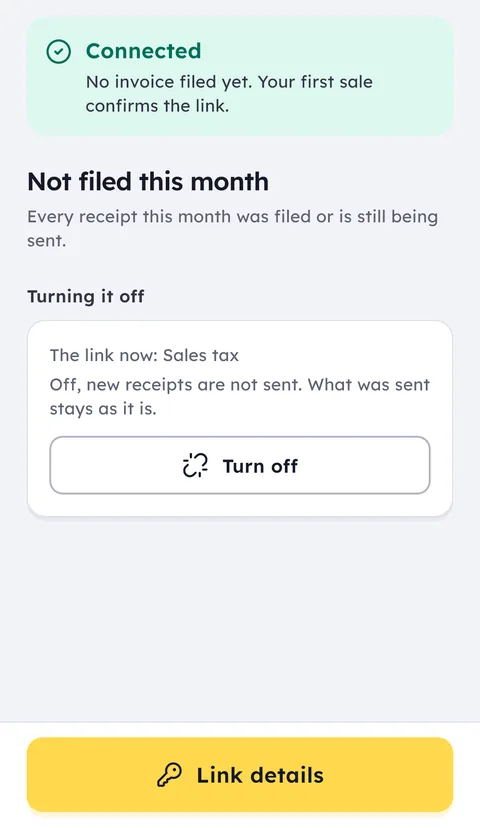
Ghalleh is connected to JoFotara. You connect it once from settings with your tax registration, tax number, Client ID (the portal's user number), Secret Key and income source sequence. From then on Ghalleh sends every sale to the system as an invoice at the moment of sale: cash if the customer paid, receivable in the customer's name if you put the amount on their account, and prints the QR on the receipt.
If the internet drops you keep selling. Ghalleh stores the invoices and resends them automatically when the connection returns. If an invoice still cannot be sent after the automatic retries, it is marked and you get an alert.
Ghalleh is available now on Google Play, and the Windows version is on the download page, with a 14-day free trial with every feature and no card. Connect your account, sell an item for a small amount, then open view invoices on the portal and check that the invoice arrived.
Everything about JoFotara on one page: the JoFotara e-invoicing guide.
Common questions
Do I need a sub-user to issue an invoice?
Yes. The portal notes that invoices issued on the website go through a sub-user, which the main user adds under add sub-user and ties to an income source sequence.
Why can't I see the invoice creation screen?
Most likely you signed in as the main user, and issuing on the website goes through a sub-user. If your business has connected a cashier app, the portal also warns at connection time that the taxpayer will not be able to issue invoices on the platform. Check your position with your accountant.
Can I edit an invoice after sending it?
No. An accepted invoice cannot be edited or deleted. Issue a return invoice linked to it if the right amount is lower, or a new invoice for the difference if it is higher.
Does a cashier app issue the invoice for me?
Yes, if the app is connected to JoFotara. The sale itself goes to the system as an invoice and the QR code prints on the receipt, with no portal login and no retyping of items.